영어 원문의 기계 번역입니다. English
Privacy-First Forum
등록하다

How to Export Your Wallet to USB – True Cold Storage, No Third-Party Garbage

· · 318 views · 5 replies

Most wallets tell you to write your seed phrase on paper and hope nothing happens to it.
We give you something cleaner and safer.

Here’s exactly how to export any of your wallets to a USB stick b:[/b]

How to Export:


• Open the wallet → click the Settings gear (top right).
• Choose “Export Wallet to USB”.
• Select which wallet address you want to export (you can have up to 5 active:
IMPORTANT each address has its own unique private key).
• Set a strong password for this export (different from your normal unlock password — write it down safely).
• Plug in the USB and hit Export.


The wallet creates two files on the USB: your encrypted quantum private key + a checksum for verification.

How to Import on any device:


• Open the wallet on the new computer.
• Choose “Import from USB” on the first screen.
• Plug in the USB, select the wallet, and enter the password you set during export.
• Your balance appears almost instantly.
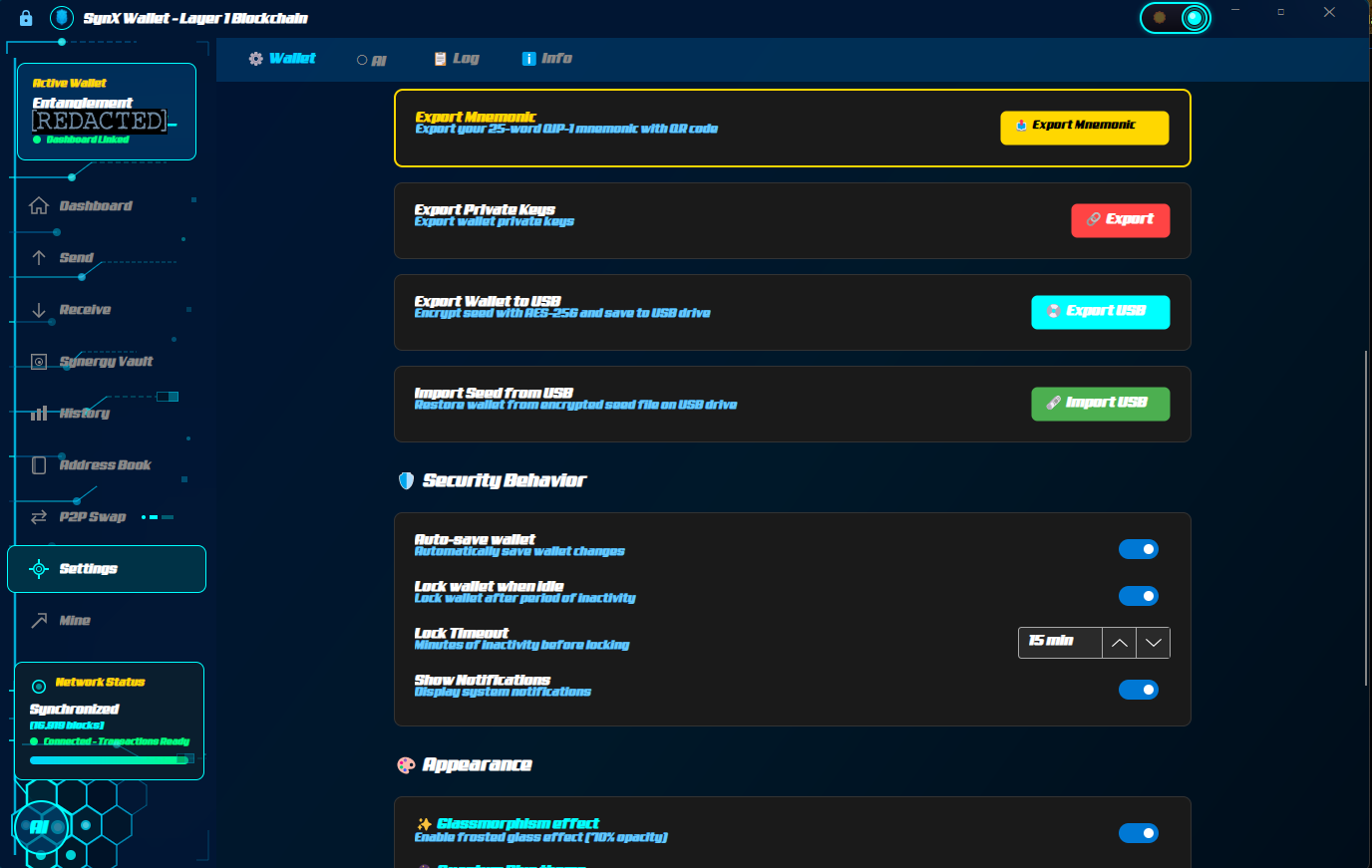
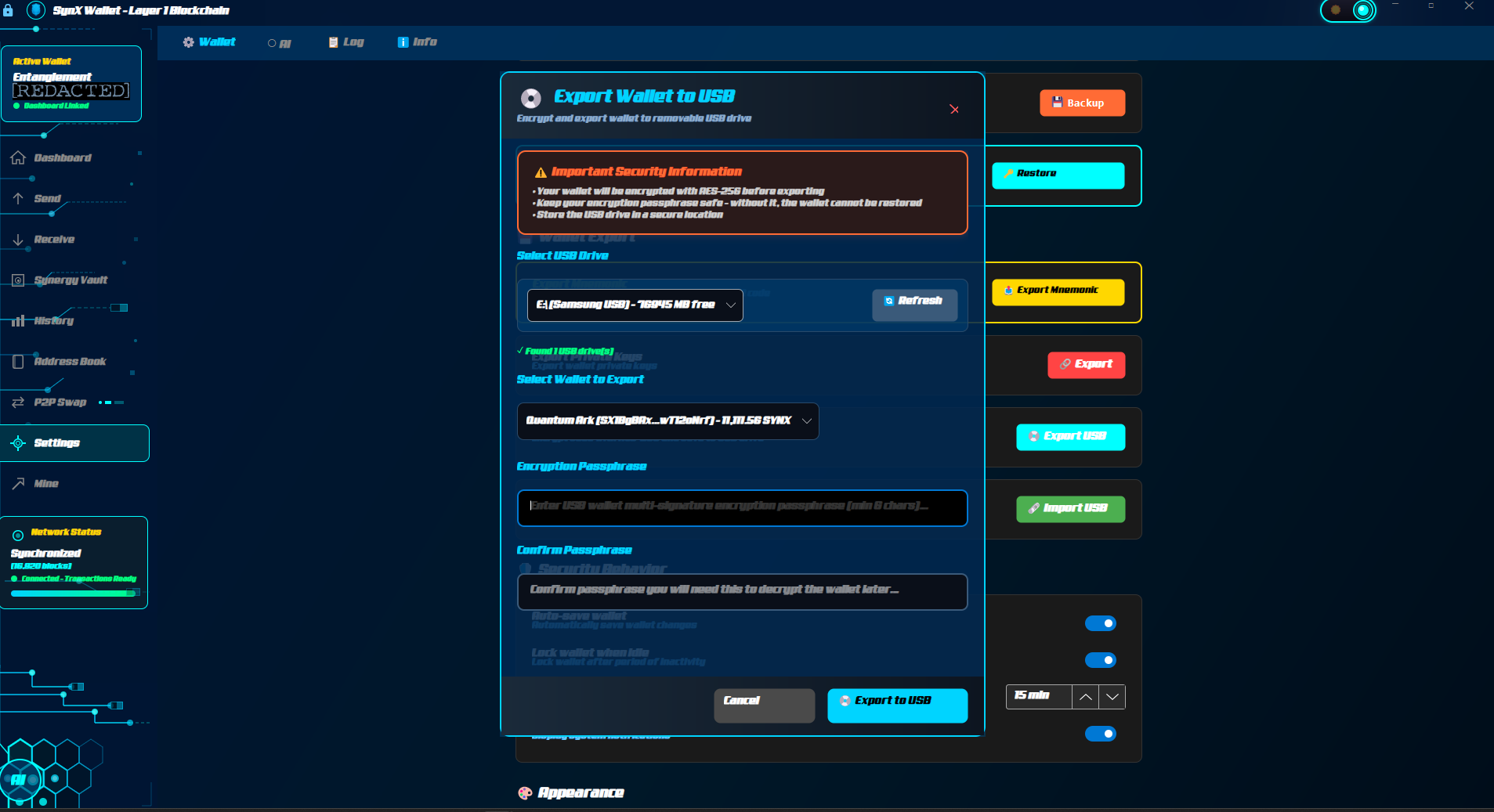
export
export2

MAKE SURE TO SELECT THE WALLET ADDRESS YOU WANT TO BACKUP EACH ONE HAS UNIQUE PRIVATE KEY FOR EXTRA SECURITY

Important note for privacy:
Importing from USB restores your balance but does not pull full transaction history. This is intentional for privacy. We don't store metadata that could ever compromise you.

No cloud. No Ledger. No third-party service that can be backdoored.
Just your keys, your USB, your rules.

This is what self-custody actually means when quantum hits.

Questions? Reply below. I read every one.

Note: Sometimes you might have to restart your wallet if you had an open offer to sell coins.

목화를 태워라.
The tiger is watching.
게시물이 **-**-**에 수정되었습니다(개인정보 보호를 위해 숨겨짐).
1
1
Quartz Dust #1 wrote:

Most wallets tell you to write your seed phrase on paper and hope nothing happens to it.
We give you something cleaner and safer.

Here’s exactly how to export any of your wallets to a USB stick b:[/b]

How to Export:


• Open the wallet → click the Settings gear (top right).
• Choose “Export Wallet to USB”.
• Select which wallet address you want to export (you can have up to 5 active:
IMPORTANT each address has its own unique private key).
• Set a strong password for this export (different from your normal unlock password — write it down safely).
• Plug in the USB and hit Export.


The wallet creates two files on the USB: your encrypted quantum private key + a checksum for verification.

How to Import on any device:


• Open the wallet on the new computer.
• Choose “Import from USB” on the first screen.
• Plug in the USB, select the wallet, and enter the password you set during export.
• Your balance appears almost instantly.

export
export2

MAKE SURE TO SELECT THE WALLET ADDRESS YOU WANT TO BACKUP EACH ONE HAS UNIQUE PRIVATE KEY FOR EXTRA SECURITY

Important note for privacy:
Importing from USB restores your balance but does not pull full transaction history. This is intentional for privacy. We don't store metadata that could ever compromise you.

No cloud. No Ledger. No third-party service that can be backdoored.
Just your keys, your USB, your rules.

This is what self-custody actually means when quantum hits.

Questions? Reply below. I read every one.

Note: Sometimes you might have to restart your wallet if you had an open offer to sell coins.

목화를 태워라.
The tiger is watching.


1
Quartz Dust #1 wrote:

Most wallets tell you to write your seed phrase on paper and hope nothing happens to it.
We give you something cleaner and safer.

Here’s exactly how to export any of your wallets to a USB stick b:[/b]

How to Export:


• Open the wallet → click the Settings gear (top right).
• Choose “Export Wallet to USB”.
• Select which wallet address you want to export (you can have up to 5 active:
IMPORTANT each address has its own unique private key).
• Set a strong password for this export (different from your normal unlock password — write it down safely).
• Plug in the USB and hit Export.


The wallet creates two files on the USB: your encrypted quantum private key + a checksum for verification.

How to Import on any device:


• Open the wallet on the new computer.
• Choose “Import from USB” on the first screen.
• Plug in the USB, select the wallet, and enter the password you set during export.
• Your balance appears almost instantly.

export
export2

MAKE SURE TO SELECT THE WALLET ADDRESS YOU WANT TO BACKUP EACH ONE HAS UNIQUE PRIVATE KEY FOR EXTRA SECURITY

Important note for privacy:
Importing from USB restores your balance but does not pull full transaction history. This is intentional for privacy. We don't store metadata that could ever compromise you.

No cloud. No Ledger. No third-party service that can be backdoored.
Just your keys, your USB, your rules.

This is what self-custody actually means when quantum hits.

Questions? Reply below. I read every one.

Note: Sometimes you might have to restart your wallet if you had an open offer to sell coins.

목화를 태워라.
The tiger is watching.


1
로그인 or 등록하다 답장하다
전체 크기 이미지
𖣐 이 게시물을 태우는 데 투표하시겠습니까?
상형문자에서 2개의 양초 🕯를 찾으세요. 시간을 투자할 가치가 있음을 증명해 보세요. 우리의 모든 날은 번호가 매겨져 있습니다.
챌린지 로드 중...