英文原文的机器翻译。 English
Privacy-First Forum
登记

How to Export Your Wallet to USB – True Cold Storage, No Third-Party Garbage

· · 331 views · 5 replies

Most wallets tell you to write your seed phrase on paper and hope nothing happens to it.
We give you something cleaner and safer.

Here’s exactly how to export any of your wallets to a USB stick b:[/b]

How to Export:


• Open the wallet → click the Settings gear (top right).
• Choose “Export Wallet to USB”.
• Select which wallet address you want to export (you can have up to 5 active:
IMPORTANT each address has its own unique private key).
• Set a strong password for this export (different from your normal unlock password — write it down safely).
• Plug in the USB and hit Export.


The wallet creates two files on the USB: your encrypted quantum private key + a checksum for verification.

How to Import on any device:


• Open the wallet on the new computer.
• Choose “Import from USB” on the first screen.
• Plug in the USB, select the wallet, and enter the password you set during export.
• Your balance appears almost instantly.
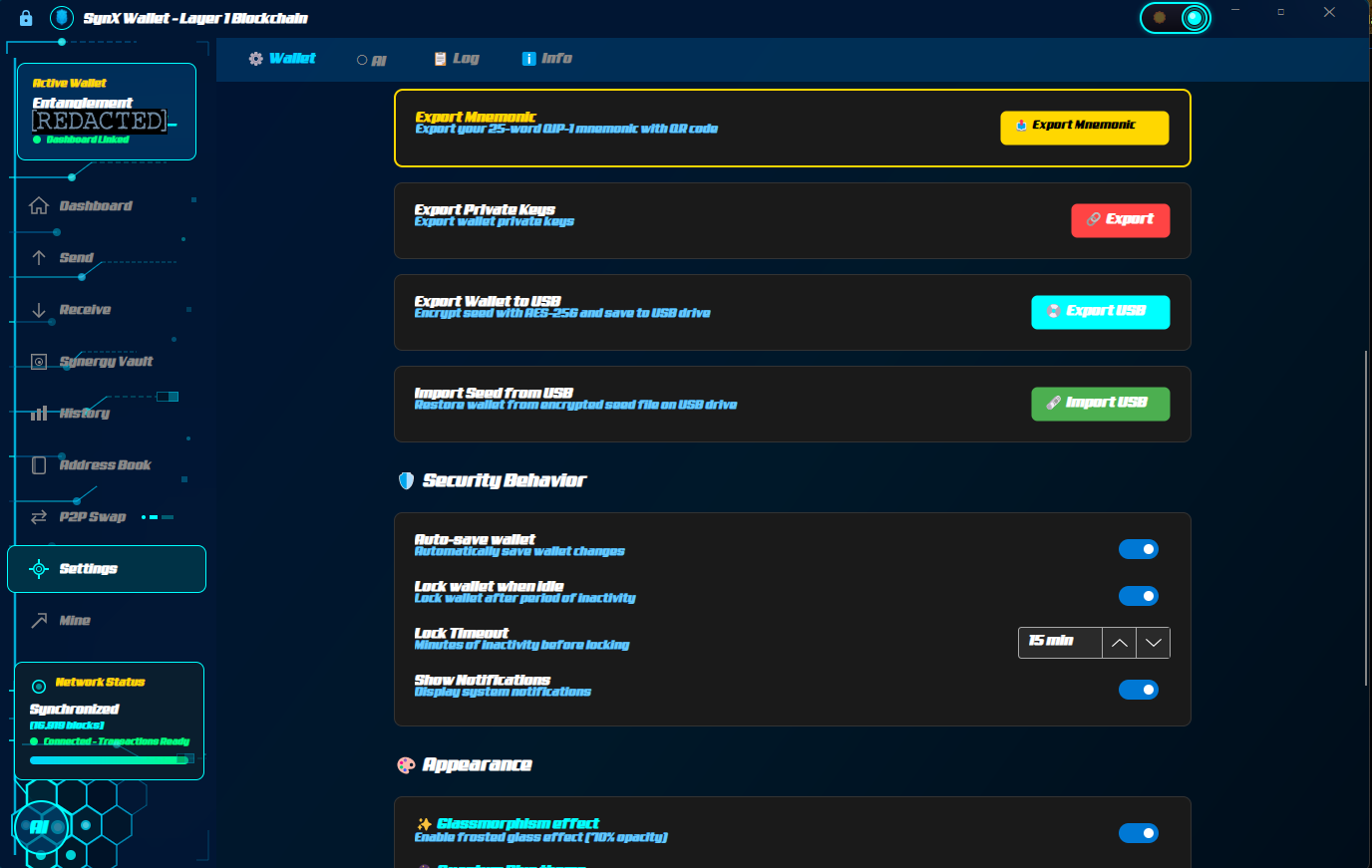
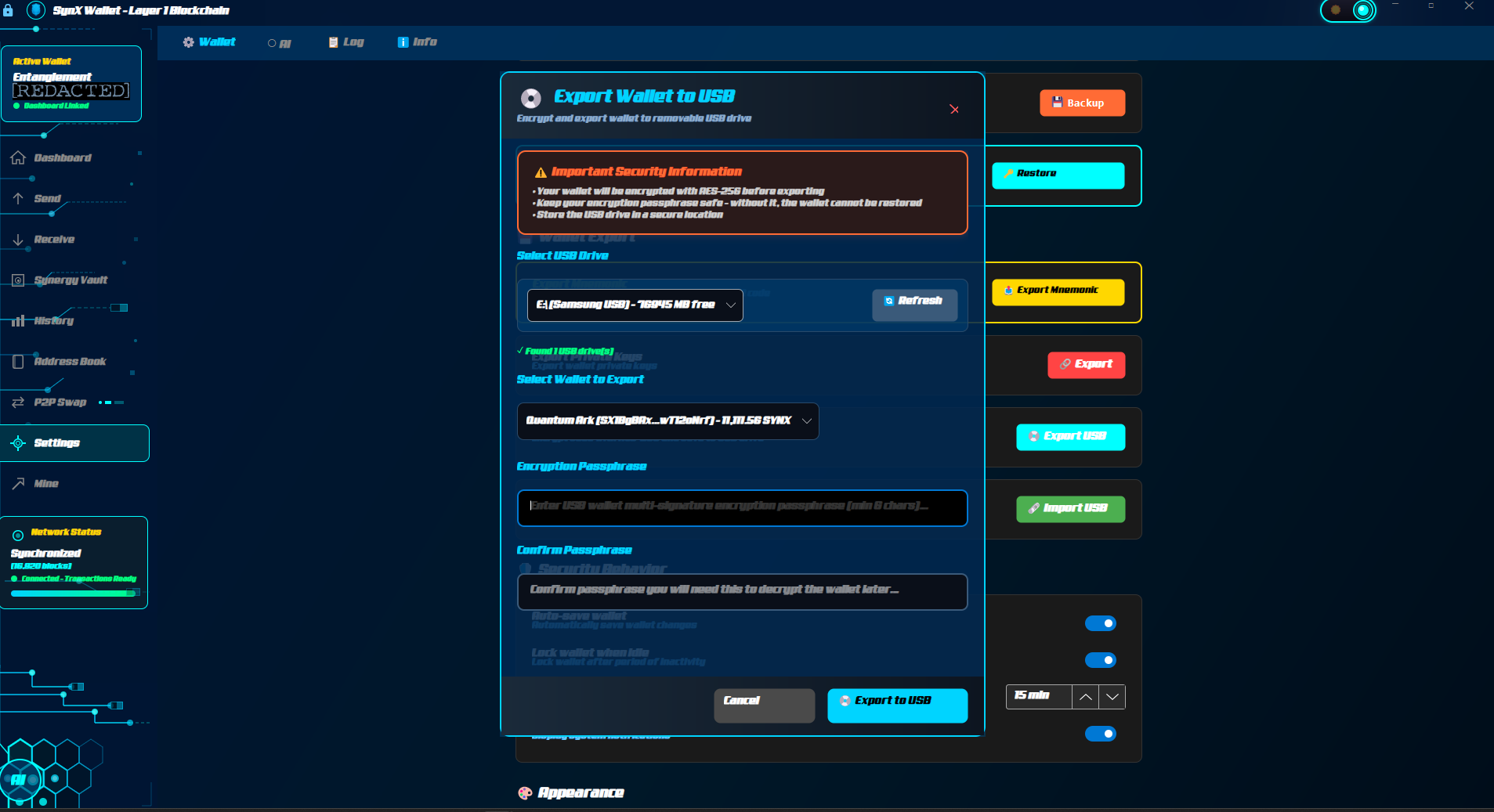
export
export2

MAKE SURE TO SELECT THE WALLET ADDRESS YOU WANT TO BACKUP EACH ONE HAS UNIQUE PRIVATE KEY FOR EXTRA SECURITY

Important note for privacy:
Importing from USB restores your balance but does not pull full transaction history. This is intentional for privacy. We don't store metadata that could ever compromise you.

No cloud. No Ledger. No third-party service that can be backdoored.
Just your keys, your USB, your rules.

This is what self-custody actually means when quantum hits.

Questions? Reply below. I read every one.

Note: Sometimes you might have to restart your wallet if you had an open offer to sell coins.

烧掉棉花。
The tiger is watching.
帖子编辑于**-**-**(出于隐私原因隐藏)
1
1
Quartz Dust #1 wrote:

Most wallets tell you to write your seed phrase on paper and hope nothing happens to it.
We give you something cleaner and safer.

Here’s exactly how to export any of your wallets to a USB stick b:[/b]

How to Export:


• Open the wallet → click the Settings gear (top right).
• Choose “Export Wallet to USB”.
• Select which wallet address you want to export (you can have up to 5 active:
IMPORTANT each address has its own unique private key).
• Set a strong password for this export (different from your normal unlock password — write it down safely).
• Plug in the USB and hit Export.


The wallet creates two files on the USB: your encrypted quantum private key + a checksum for verification.

How to Import on any device:


• Open the wallet on the new computer.
• Choose “Import from USB” on the first screen.
• Plug in the USB, select the wallet, and enter the password you set during export.
• Your balance appears almost instantly.

export
export2

MAKE SURE TO SELECT THE WALLET ADDRESS YOU WANT TO BACKUP EACH ONE HAS UNIQUE PRIVATE KEY FOR EXTRA SECURITY

Important note for privacy:
Importing from USB restores your balance but does not pull full transaction history. This is intentional for privacy. We don't store metadata that could ever compromise you.

No cloud. No Ledger. No third-party service that can be backdoored.
Just your keys, your USB, your rules.

This is what self-custody actually means when quantum hits.

Questions? Reply below. I read every one.

Note: Sometimes you might have to restart your wallet if you had an open offer to sell coins.

烧掉棉花。
The tiger is watching.


1
Quartz Dust #1 wrote:

Most wallets tell you to write your seed phrase on paper and hope nothing happens to it.
We give you something cleaner and safer.

Here’s exactly how to export any of your wallets to a USB stick b:[/b]

How to Export:


• Open the wallet → click the Settings gear (top right).
• Choose “Export Wallet to USB”.
• Select which wallet address you want to export (you can have up to 5 active:
IMPORTANT each address has its own unique private key).
• Set a strong password for this export (different from your normal unlock password — write it down safely).
• Plug in the USB and hit Export.


The wallet creates two files on the USB: your encrypted quantum private key + a checksum for verification.

How to Import on any device:


• Open the wallet on the new computer.
• Choose “Import from USB” on the first screen.
• Plug in the USB, select the wallet, and enter the password you set during export.
• Your balance appears almost instantly.

export
export2

MAKE SURE TO SELECT THE WALLET ADDRESS YOU WANT TO BACKUP EACH ONE HAS UNIQUE PRIVATE KEY FOR EXTRA SECURITY

Important note for privacy:
Importing from USB restores your balance but does not pull full transaction history. This is intentional for privacy. We don't store metadata that could ever compromise you.

No cloud. No Ledger. No third-party service that can be backdoored.
Just your keys, your USB, your rules.

This is what self-custody actually means when quantum hits.

Questions? Reply below. I read every one.

Note: Sometimes you might have to restart your wallet if you had an open offer to sell coins.

烧掉棉花。
The tiger is watching.


1
登录 or 登记 回复
全尺寸图像
𖣐 投票烧掉这篇文章?
在象形文字中找到 2 根蜡烛🕯。证明它值得你花时间。我们所有的日子都屈指可数了。
正在加载挑战...